5 Best Free AI Meeting Note Takers Worth Using in 2026
Posted On: July 31, 2026
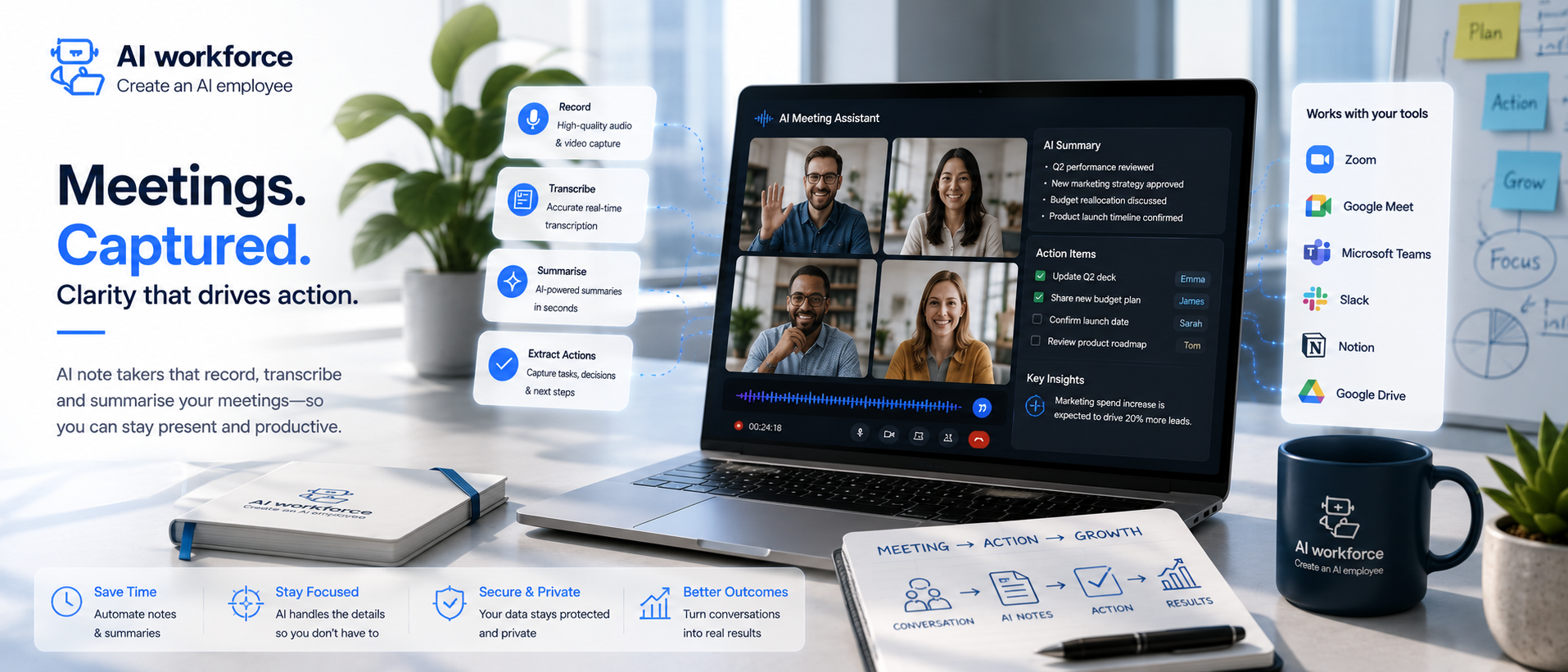
Typing notes while trying to listen in a meeting has never really worked. An AI note taker fixes that: join a call, let it record, and get organised AI notes and a summary the moment the call ends. This guide compares the best free options worth trying in 2026 and shows how the right one can turn conversations into action.
What Is an AI Note Taker and How Does It Work?
An AI note taker joins your call the same way a human note taker would, except it never gets tired and never misses a word. AI-powered transcription turns speech into text as the meeting happens, and advanced AI models handle accents, cross-talk, and jargon far better than they could even a year ago.
Most tools work the same basic way: join the call, capture the recording, transcribe it in real time, then hand the recording to a language model that writes the summary. Smart AI handles the messy parts- filler words, interruptions, tangents- so what's left reads like something a sharp colleague actually wrote up.
AI note-taking used to mean typing while listening at the same time; note-taking this way splits attention right when you need it most. A genuinely useful AI note taker removes that trade-off entirely, and for many people it becomes a kind of personal AI they rely on for every call.
Why Otter Is Still a Popular AI Notetaker Choice
Otter AI remains one of the most recognised names in this category, and it's often the first tool people try. It handles AI meeting notes reliably, with a clean interface and an app available on Google Play for anyone who wants it on their phone.
Its AI chat feature lets you ask questions about a past call directly, pulling the answer instead of you scrolling back through the call to find it. For a straightforward meeting notetaker that just works without much setup, it's still a solid default choice.
How Does Live Transcription Actually Work?
Live transcription is the foundation everything else builds on: audio becomes text within a second or two of being spoken, so you can glance at the screen mid-sentence and see roughly what's being said. Real-time transcription accuracy has improved enormously, with automatic speaker detection now telling voices apart even on a call with six or seven people talking.
Meeting transcription used to mean a rough approximation full of errors; AI meeting transcription today gets close enough to word-for-word that teams use it as the actual record of what was said, not just a rough guide. Transcribe a call once, and the same pipeline can transcribe every future one automatically, no extra setup required.
Does It Work With Zoom, Google Meet, and Teams?
Zoom, Google Meet, and Microsoft Teams all support these tools natively now, so joining a call works with Zoom the same way it works with any other platform, no manual dial-in required. A bot joins the moment the meeting starts and leaves the moment it ends.
Global teams especially benefit from this kind of coverage: a call in one timezone and a call in another both get the same treatment, the same summary, the same action items, regardless of which platform the meeting happened on.
What Happens to Your AI Notes After the Meeting?
AI notes don't just sit in an inbox once the call ends: post-meeting, they get organised into a shareable document with key moments highlighted, ready to send to anyone who missed the call.
Some tools also let you leave a quick voice memo-style recap out loud after a call, turning a two-minute verbal summary into a written record automatically.
How Are Action Items and Summaries Generated?
Generate a summary at the end of every call, and you get more than just a recap: meeting summaries typically include summaries and action items together, plus a short list of decisions made along the way. AI summarizer tools handle this step well now, distilling forty minutes of conversation into a few lines worth actually reading.
A full meeting recap works best broken into layers: key takeaways and action items up top for anyone skimming, then the full write-up underneath for anyone who needs the detail. AI summaries improve the more context a tool has, which is why the best ones get noticeably better after a few calls with the same group.
Points and action items delivered this way save the ten minutes people used to spend writing up notes after every call, and summarising a long discussion automatically means nobody has to reread an hour of notes just to find the one decision that mattered.
Is Your Data Actually Private and Secure?
Data privacy and security should be one of the first things you check, not an afterthought once you're already relying on a tool daily. Meeting data often includes sensitive client details, so knowing exactly where it's stored and who can access it matters.
Look for gdpr compliance if you're handling any UK or EU data, and check whether the provider holds SOC 2 certification, a recognised standard for how securely a company handles customer data. Notes and transcripts should be deletable on request, not locked in permanently.
Which Tools Offer a Genuinely Free Option?
Every major tool offers some kind of no-cost tier, but the details vary a lot: some cap you at a handful of calls a month, others just limit which features you get. A generous free plan usually means unlimited meeting recordings and full history, not just a taste of what the paid version offers.
One popular option, for example, is free for individuals with 10 meetings per month included before you need to upgrade, each capped around 30 minutes per call unless you're on a paid plan. That's a workable setup for individuals and small teams who don't need every feature from day one.
A permanent free plan, one that doesn't expire after a trial period, is worth more than it sounds: it means you can actually rely on the tool long-term rather than building a workflow around something that disappears in thirty days. A free trial only tells you so much; a genuinely free tier tells you whether it's worth staying for.
How Do You Search and Query Past Meetings?
Ask AI a question about a call from three weeks ago and get instant answers instead of scrolling through hours of recordings hoping to spot the right moment. Searching across your meetings this way turns months of recordings into something genuinely useful rather than a pile of files nobody reopens.
Meeting insights like talk-time ratios and sentiment increasingly show up alongside the notes too, particularly useful for client meetings where tone matters as much as content. Using AI this way turns a call you might otherwise forget into something you can actually learn from.
You don't always need to attend the meeting yourself to stay informed, either: read the summary, skim the action items, and ask a follow-up question if something's unclear, all without sitting through the full call.
How Does It Integrate With Your CRM and Everyday Tools?
Integration with your existing crm matters more than any single flashy set of AI features: push call notes straight into Salesforce or HubSpot without anyone copying and pasting a summary by hand. The best AI tools disappear into your existing workflow rather than asking you to change how you already work.
An AI meeting assistant increasingly goes further than a static summary too: drafting follow-up emails automatically and flagging anything that needs a specific person's attention, closer to a full AI assistant than a passive note-taker.
Frequently Asked Questions
Do I need to attend every meeting myself? No, that's the whole point: skim the summary and notes afterwards instead, and let the tool handle the rest automatically without you remembering to turn it on each time.
Where do my files actually get stored? Most tools sync recordings and written notes to Google Drive or a similar cloud folder automatically, so nothing lives only inside the app itself. Note-taking by hand becomes optional rather than necessary once this is running reliably in the background.
Does it work for languages other than English? Many tools now handle several languages well, though accuracy still varies from one to the next. A tool that transcribes meetings across multiple languages in one place saves you from juggling separate apps.
Key Takeaways
These tools capture, transcribe, and summarise every call automatically
One of the most established players remains a strong option for solo users
Zoom, Google Meet, and other major call platforms are all supported natively
Action items and summaries save the ten minutes you'd spend writing them up yourself
Check data privacy and GDPR compliance before connecting anything sensitive
A tool with no real usage limits is worth more than a time-limited trial
CRM integration turns notes into actual follow-up work
Ready to Stop Taking Your Own Meeting Notes?
If you're still typing notes during calls instead of actually listening, it's worth seeing how much of that can be automated without losing anything important. Get in touch, and we'll help you find the right starting point.